• Log in
    • Start learning

    Help us test the new Memrise app

    Join our public beta!

    Why we need you

    This is a bug hunt. The beta is an early version of the new Memrise app, so it's less stable than the current app. Things will break, and that's why we need you.

    The only feedback we're asking for here is about things that are broken:

    • bugs, like crashes, freezes, blank screens or buttons that do nothing
    • anything in the design that stops you using the app, like a screen you can't get past or a button you can't find to carry on

    We're only looking for bugs right now!   
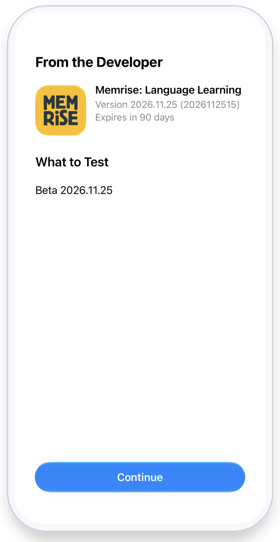
    The Memrise beta in TestFlight on iPhone: version and What to Test for the beta

    Before you start: please read this

    Logging in with an existing account moves it to the new app, with no turning back

    If you log in with an existing Memrise account, it moves to the new app for good. The current app will no longer work for that account. Leaving the beta and reinstalling the App Store app does not bring the old app back.

    Your progress, streaks and Pro all carry over.

    Not ready to move your account? Create a new account in the beta instead, using a different email address from the one on your Memrise account.

    Join on iOS (iPhone and iPad)

    You'll need: an iPhone or iPad, and a few minutes.

    Step 1

    Install TestFlight

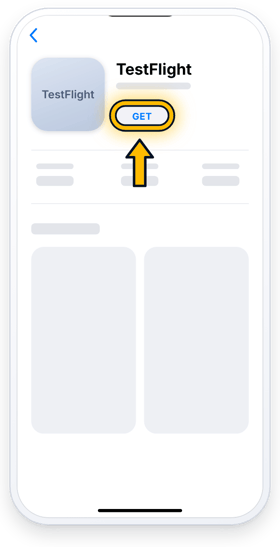
    TestFlight is Apple's free app for testing beta apps. Download it from the App Store:

    Get TestFlight on the App Store Illustration of the TestFlight app page in the App Store, with the Get button highlighted
    Step 2

    Open the Memrise beta link

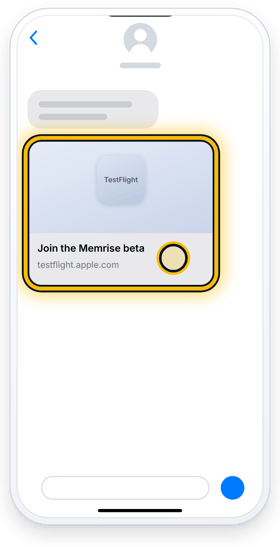
    On the same iPhone or iPad, open this link:

    Open the beta in TestFlight Illustration of the Memrise beta invite link opened on an iPhone
    Step 3

    Tap Accept

    TestFlight opens and shows the Memrise beta. Tap Accept.
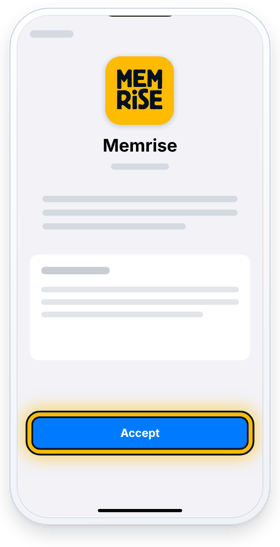
    Illustration of the Memrise beta in TestFlight, with the Accept button highlighted
    Step 4

    Tap Install

    Tap Install. If TestFlight asks, tap Continue. The beta replaces the Memrise app on your phone. You'll see a small orange dot next to the app name, which means you're on the beta.
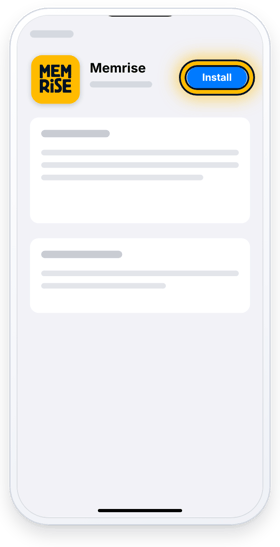
    Illustration of the Memrise beta in TestFlight, with the Install button highlighted
    Step 5

    Open Memrise and log in

    On the welcome screen, if you already have a Memrise account, tap Log in and use your usual Memrise login - but remember you’ll be migrated! (Apple, Google or email). If you use email, we'll email you a code. Once you enter it, your account moves to the new app.

    The new Memrise app welcome screen, Learn with locals, with the Log in button highlighted

    Getting updates

    We'll send new beta builds as we fix things. TestFlight lets you know when one is ready. To get them automatically, open TestFlight, tap Memrise and turn on Automatic Updates.

    Leaving the beta

    Open TestFlight, tap Memrise, scroll down and tap Stop Testing. Then you can reinstall Memrise from the App Store.

    Leaving the beta and reinstalling the App Store app does not bring the old app back. Once you have signed in to the beta, your account only works in the new app.

    How to send feedback on iOS

    There are a few ways to send a report. All of them come straight to our team.

    1

    Take a screenshot (best for most bugs)

    While you're in the beta, take a screenshot of the problem. Tap the thumbnail, then tap Share Beta Feedback… in the share menu. Mark it up if it helps, tell us what happened and tap Submit. If you'd like us to be able to reply, add your email address. Otherwise your report is anonymous.
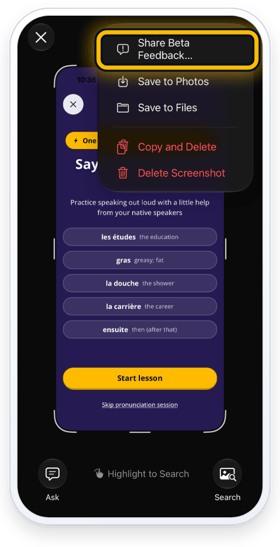
    The iPhone screenshot share menu with Share Beta Feedback… highlighted
    2

    Use the TestFlight app

    Open TestFlight, tap Memrise, then tap Send Feedback. A dialog titled Send Beta Feedback opens. Choose whether to include a screenshot, describe the problem and tap Submit. This works well for problems that are hard to capture in one screenshot.
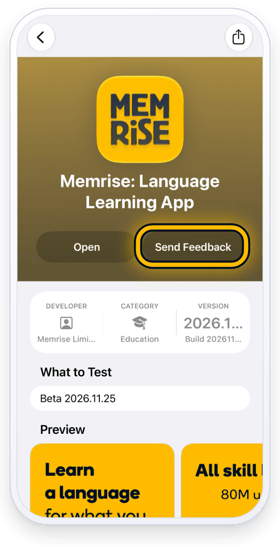
    The Memrise page in TestFlight with the Send Feedback button highlighted
    3

    Long-press the Memrise icon

    Hold the Memrise app icon, then tap Send Beta Feedback.
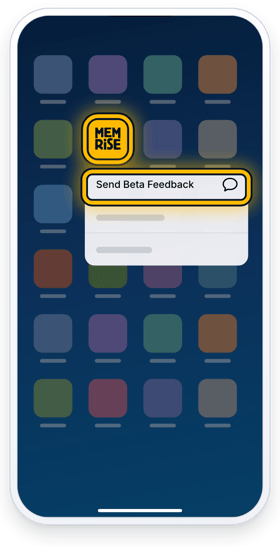
    Illustration of the long-press menu on the Memrise icon, with Send Beta Feedback highlighted
    4

    After a crash

    If the app crashes, you might see a message asking if you want to share the crash details. Tap Share, add a line about what you were doing, and tap Submit. This tells us exactly where the app broke.

    What to write: see "What to include in a report" below. The more specific you are, the faster we can fix it.

    Join on Android

    You'll need: the Google account you use for the Play Store.

    Step 1

    Open Memrise in the Play Store

    Open the Play Store, signed in with your Google account, and go to the Memrise listing:

    Open Memrise in the Play Store The Memrise listing in the Play Store
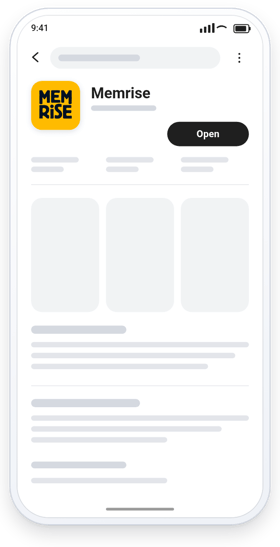
    Step 2

    Tap Join the beta

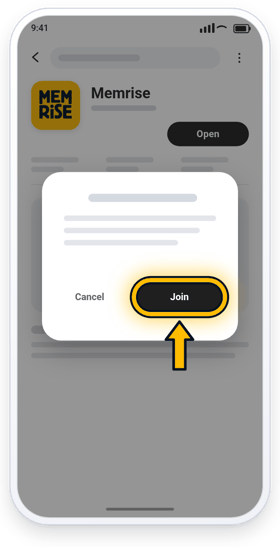
    Scroll down to "Join the beta" and tap Join, then Join again to confirm.
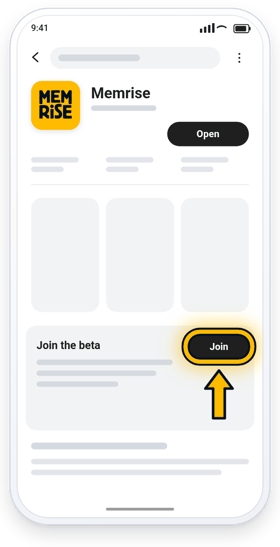
    The Join the beta section on the Memrise listing, with the Join button highlighted The confirmation prompt to join the beta, with the Join button highlighted
    Step 3

    Wait for the confirmation

    You'll see "You're a beta tester". It can take a few minutes.
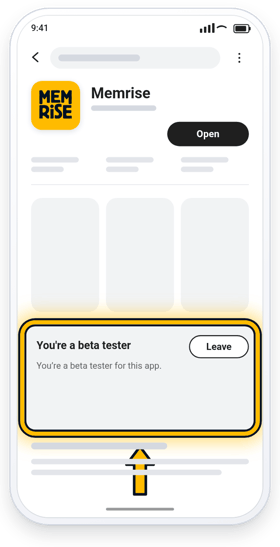
    The You're a beta tester message on the Memrise listing
    Step 4

    Update Memrise

    When the listing shows Memrise (Beta), tap Update or Install. The beta replaces the Memrise app on your phone.
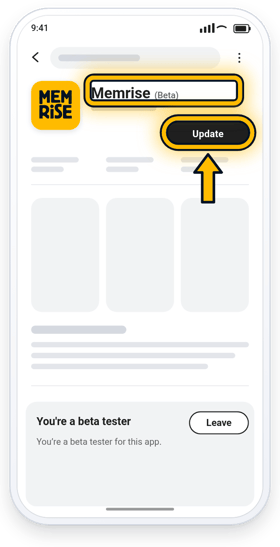
    The Memrise listing showing Memrise (Beta) and the Update button
    Step 5

    Open Memrise and log in

    On the welcome screen, if you already have a Memrise account, tap Log in and use your usual Memrise login (Apple, Google or email). If you use email and a password, we'll email you a code. Once you enter it, your account moves to the new app.

    The beta welcome screen, with the Log in button highlighted

    Can't see "Join the beta"?

    1. Pull down on the listing to refresh it.
    2. Still not there? Clear the Play Store cache: go to your phone's Settings, then Apps, then Google Play Store, then Storage, then Clear cache. Open the Play Store and try again.
    3. If that doesn't work, clear the Play Store storage in the same place, then try again.
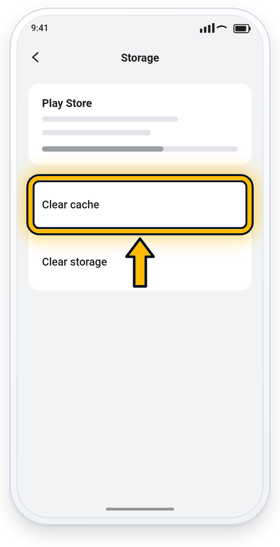
    Android Settings, Google Play Store, Storage screen with Clear cache highlighted

    Leaving the beta

    Go to the Memrise listing in the Play Store, scroll to "You're a beta tester" and tap Leave. Leaving the beta does not bring the old app back. Once you have signed in to the beta, your account only works in the new app.
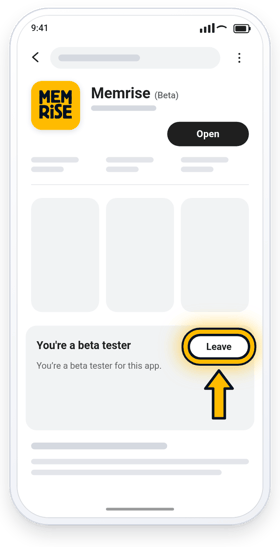
    The You're a beta tester section on the Memrise listing, with the Leave button highlighted

    How to send feedback on Android

    If you encounter a bug, take a screenshot, then tap the bug icon on any screen of the beta app, describe the bug and upload the screenshot. That's the only way to send a report on Android, and it comes straight to our team.

    1

    Take a screenshot and tap the bug icon

    Take a screenshot, then tap the bug icon on any screen of the beta app.
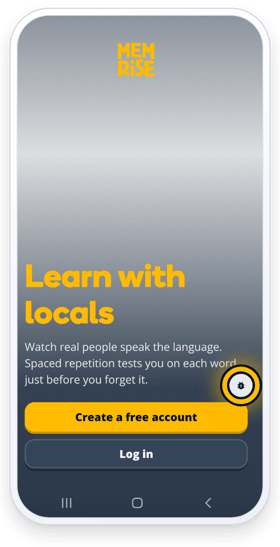
    The bug icon on a screen of the beta app
    2

    Describe the bug and upload the screenshot

    Describe the bug and upload the screenshot.
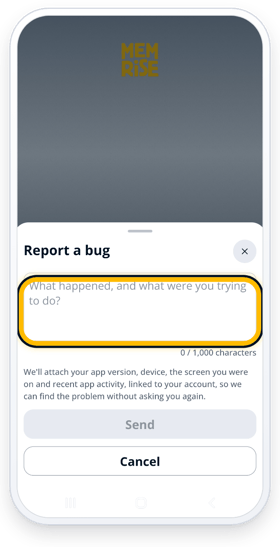
    The bug report screen, where you describe the bug

    What to write: see "What to include in a report" below. The more specific you are, the faster we can fix it.

    What counts as a bug

    A bug is when the app does something it shouldn't, or can't do something it should. For example:

    • it crashes or freezes
    • a button does nothing
    • a screen is blank or stuck
    • your progress or audio doesn't save
    • you can't get past a screen

    Things you'd like to work differently, and new ideas, aren't bugs. Once we get the bugs squashed and the app working smoothly, we'll ask for more broad feedback about the experience. If you'd be up to join our more extensive user testing, please sign up here: sign up for a user interview

    What to include in a report

    TestFlight on iPhone and the bug icon on Android send your device, OS version and beta version automatically, so you just need to tell us:

    1. What happened, in one line. For example: "The learning session freezes when I tap Continue."
    2. The steps to make it happen: 1, 2, 3.
    3. What you expected to happen, and what actually happened.
    4. How often it happens: every time, sometimes or once.
    5. A screenshot or screen recording, if you have one and didn't already send it through TestFlight. Please hide any personal details first.
    6. The email on your Memrise account, so we can look into it. Only add it if you're happy to share it.
    7. Your connection (wifi or mobile data) and the language you're learning.

    Check these first

    Some things look like bugs but aren't. Running through this list takes about a minute and ensures a better beta testing experience.

    Connection: switch from wifi to mobile data, or the other way round. Do other apps load? Weak or public wifi can cause endless loading and failed downloads.

    Storage: is your phone nearly full? Free up some space and try again.

    Low Power Mode or Data Saver: turn off Low Power Mode, Low Data Mode, Data Saver or battery saver, then try again. They can pause downloads and syncing.

    VPN or ad blocker: turn it off and try again.

    The right account: check you're signed in with the email you meant to use.

    An old beta build: on iOS, check TestFlight for an update, or a message saying the build has expired. On Android, check the Play Store for an update.

    Old app or new app: make sure you're on the new app. On iOS you'll see the orange dot next to the name. On Android the Play Store listing shows "(Beta)". If it still looks like the old app, tell us, because that's worth reporting.

    Date and time: make sure your phone sets the date and time automatically.

    Restart: close the app fully and reopen it. If that doesn't help, restart your phone once.

    Still broken? Please report it.

    FAQ

    Who can join?

    Anyone who's happy to test!

    What happens to my account when I log in?

    If you log in with an existing Memrise account, it moves to the new app for good. The current app will no longer work for that account. Leaving the beta and reinstalling the App Store app does not bring the old app back.

    Can I try the beta without moving my account?

    Yes. Create a new account in the beta, using a different email address from the one on your Memrise account.

    Will I keep my progress, streak and Pro?

    Yes, they come with you. Your words heard, words used and videos watched counts won't carry over, and Buddies aren't part of the new app.

    Can I suggest new features here?

    We're only looking for bugs right now. Once we get the bugs squashed and the app working smoothly, we'll ask for more broad feedback about the experience. If you'd be up to join our more extensive user testing, please sign up here: sign up for a user interview

    Will I hear back about my report?

    We read every report, but we can't reply to all of them. On iOS, add your email to the report if you're happy for us to get in touch.

    Is it free?

    Yes. TestFlight is free, and so is joining the beta.

    How do I leave?

    On iOS, use Stop Testing in TestFlight (see "Leaving the beta"). On Android, go to the Memrise listing in the Play Store, scroll to "You're a beta tester" and tap Leave (see "Leaving the beta"). Leaving the beta and reinstalling the App Store app does not bring the old app back. Once you have signed in to the beta, your account only works in the new app.

    Join our public beta!